FYI - we recommend "IMAP" over "POP3" especially if using more that one device to access email. If you have issues and are accessing with multiple devices, let us know and we can look through our logs to see if changing parameters for that login will help.
Quick Facts and Set Up
Here are some quick facts about where to access WebMail functionality and information relating to setting up POP and IMAP.
|
Mail Access Method
|
Details
|
|
WebMail website to access mailbox
WebMail "Options" allows you to change password, set forwarding and auto response.
|
If you host with us, instead of using "www" Use "mail" as the prefix for the address (url)
Your username may not be your email address, contact us if in unsure.
(it may redirect to https:/mail.webengr.com/ - if so that is nominal)
(If using frequently, please verify your pesonal information under Options.)
|
|
WebMail website to securely access mailbox
WebMail "Options" allows you to change password, set forwarding and auto response.
|
https://mail.webengr.com/
Your username is probably not your email address.
(If using frequently, please verify your pesonal information under Options.)
(FYI - The mail server ssl server certificate is set for the default domain mail.webengr.com. The additional costs of a dedicated certification and IP address for each domain is not necessary for most situations.)
|
email client
setup 'gotcha' NOTES
IMAP prefix, directory path |
Don't use "secure authentication" for password type, plain text is protected if the all the traffic is encrypted. WHY? Securing the authentication on many applications only secures the username/password but not the rest of the email. We support the option of securing all the email by using SSL/TLS for all the incoming and STARTTLS for all the outgoing/smtp communication. Yes the naming methods are for email encryption are confusing. Ask us if unsure.
When using imap, set the 'path' or 'root folder' to mail (may need to go into advance settings) The webmail also uses that folder to put mail folders into.
|
|
POP/SMTP setup information
* For email clients (e.g., Outlook/Thunderbird)
|
Incoming Server: your server with "mail" instead of "www"
Outgoing Server: your server with "mail" instead of "www"
We recommend that you use IMAP but if you must we do support pop3. The pop3 port number is by default 110, and if using SSL encrytion on port 995 or 8995 )
|
|
Secure POP/SMTP setup information
* For email clients (e.g., Outlook Express)
|
Incoming Server: mail.webengr.com
Outgoing Server: mail.webengr.com
We recommend that you use IMAP but if you must we do support pop3
For SMTP, outbound, we recommend port 587 instead of 25 for outgoing, 587 is the 'submission' port which works better that the "relay" port number, also you can use encryption method STARTTLS for either.
The pop3 port number is by default 110, but if you are using SSL/TLS for encryption the port number is 995 or 8995.
FYI - The mail server ssl server certificate is set for the default domain mail.webengr.com. The additional costs of a dedicated certification and IP address for each domain is not necessary for most situations.
|
|
IMAP setup information
* For email clients (e.g., Outlook/Thunderbird)
|
Incoming Server: your server with "mail" instead of "www"
root mail folder: mail
Outgoing Server: your server with "mail" instead of "www"
Notes:
The imap port number is by default 143, but if you are using SSL/TLS for encryption the port number is 993 or 8993
|
|
Secure IMAP setup information
* For email clients (e.g., Outlook/Thunderbird)
|
Incoming Server: mail.webengr.com
root mail folder: mail
Notes:
The imap port number is by default 143, but if you are using SSL/TLS for encryption the port number is 993 or 8993
For outgoing, smtp, we recommend port 587 instead of 25 for outgoing, 587 is the 'submission' port which works better that the "relay" port number - both ports support STARTTLS
FYI - The mail server ssl server certificate is set for the default domain mail.webengr.com. The additional costs of a dedicated certification and IP address for each domain is not necessary for most situations.
|
Accessing Your Mailbox
There are two ways to access your mailbox: (1) through WebMail from any computer connected to the Internet and (2) through your email application on your computer (e.g., Outlook, Thunderbird, Cloud service, Cell phone App, etc...). There are a few simple steps to connect to your mailbox before being able to send and receive messages:
Accessing your mailbox via WebMail
Access your mailbox by opening your web browser (e.g., Internet Explorer® or Firfox® or Chrome® or other) and entering your mail.domainname.tld into the address bar (i.e., with domainname and tld being your personal domain name such as companyabc.com). It is that easy! Don't put the www in front of the address though or it won't work.
Enter your assigned user name ( a unique name, not necessarily your email name ) and your password and click on the 'Login' button. You are now ready to send and/or receive messages. You may also want to edit 'Personal Information' under 'Options' page because the default email address may be an alias.
Accessing your mailbox via the email client OUTLOOK
Of note, outlook 2010 seems to do a lot better than its earlier versions at handling IMAP. If using a previous version of Outlook, our customers that upgraded had a lot of gremlins dissappear. As of Outlook 2010, Microsoft finally supports seting IMAP trash folders and SENT folder to be on the server. Things to watch out for:
Outlook Configuration Notes:
- These instructions were created with Outlook 2003 (if you have another version, it will be similiar, but expect variations).
Configure Outlook
Either start Outlook and go to "TOOLS" and "ACCOUNTS or you may can click 'Start-Settings-Control Panel' and find the 'Email' Icon, and open it (double-click). You should see the following screen.

Click on the 'Email Accounts' button.

Select "add a new email account". Then click next.

Select IMAP and click next.

Fill in all the information on this page. Please make sure you do not have a checkmark for "Log on using Secure Password"
(SPA only supports encryption for username/password, and is not compatible with full encryption....)
You will also need to use the button "more settings" for the next window:

Select "outgoing server" tab and check the box that says "my outgoing server requires authentication".
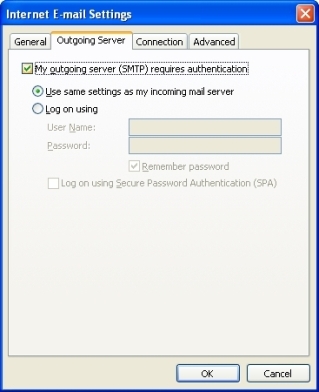
Select the "Advanced" tab and check both boxes for enabling SSL on incoming/outgoing servers. Also change the outgoing mailserver port to 587.
It is recomended that you select a "root folder path". For legacy support recommend seting this to "mail". This puts your IMAP folders under a directory called "mail" in your unix home directory. Also the web email is configured to use mail folders in the same directory. If you use different IMAP applications and some are not set, they may make folders above this directory and the web mail will not see them.
NOTE!!!! on OUTLOOK 2007 select "auto" from the drop down box, instead of SSL

Select "OK", "Next", "Finish" and then close all the windows.
OUTLOOK SEND/RECEIVE FOR IMAP:
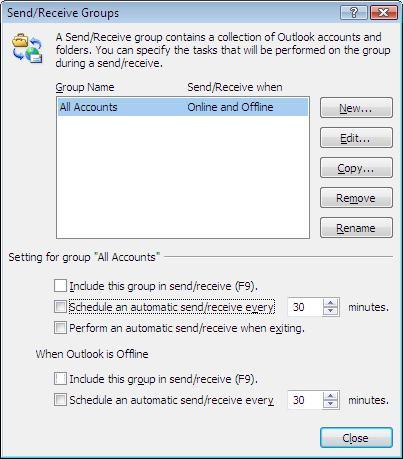
If you are using IMAP, you need to either turn off automatic send and receive or make sure that the IMAP account is not included in that. Automatic send and receive interferes with the IMAP update which happens separately.
To explain the option:
* If your IMAP account is the only account you have, then you can simply turn off automatic send and receive because it is unnecessary.
* If you have other email accounts that are using POP, you will probably want them updated regularly, so leave on the auto s & r for them, but disable it for the IMAP accounts. You could also just do the s & r manually
example w/ Outlook 2007
Configure Outlook to behave properly with IMAP
Note: These steps are very important. By default, Outlook will periodically check for new mail and check all subscribed folders. This places unnecessary load on our mail servers, and will give you annoying error messages as the extra unecessary connections timeout. Within the IMAP configured environment a mail server will notify a desktop mail client as soon as the new message enters the INBOX.
Disable periodic new mail check
- Click Tools -> Options, and choose the "Mail Setup" tab.
- Click the Send/Receive button.
- Find "Schedule an automatic send/receive every XX minutes". line and remove the corresponding check mark.
- Click Close, then click OK.
--------------- more problems with i phones ?
PROBLEM
Error message when trying to delete a message from iPad or iPhone:
Unable to move message. The message could not be moved to the Trash.
SOLUTION
Navigate to your email account's settings
- Go To Settings (Gear icon).
- Tap Mail, Contacts, Calendars.
- Select your email account (You will want to make sure this is set for all your IMAP accounts.)
- Tap Account Info (in iOS 8, tap the item named "Account [your email address]").
- Tap Advanced (At the very bottom. You may need to hide the keyboard to see this.)
Set up Mailbox Behaviors to store message in the correct folders "On The Server"
- Under the "Mailbox Behaviors" section, select "Drafts Mailbox"
- In the new window, select the "Drafts" folder from the "On the Server" section. You should see a check mark next to this folder. Do NOT check the "On My iPhone" "Drafts" selection at the top.
- Tap the "Advanced" button on the top left to go back to the advanced page.
- Repeat this process for the "Deleted Mailbox" and "Sent Mailbox", selecting the corresponding "On The Server" mailboxes. With Gmail accounts, you will also have the ability to map an "Archive Mailbox", which can be linked to the "All Mail" mailbox.
Back Out to Complete the Changes
- Tap the "Advanced" button on the top left.
- Tap on "Account Info".
- Tap "DONE" (do not tap Cancel).
You may need to then completely shut down, and then turn your iPhone back on.


 Printer-friendly version
 PDF version